Automating SitecoreAI Content Updates with Scheduled Azure Logic Apps
Friday, October 16, 2026
The Use Case
In my SitecoreAI and Next.js application, I implemented a Vercel Cron Job to refresh the products node every hour. After deploying the application to Dev, QA, and Production, I noticed that the scheduled job ran as expected in Production but did not execute in the Dev and QA environments.
After investigating the issue, I realized that Vercel Cron Jobs are designed to run against production deployments rather than preview deployments. Since my lower environments used non-production deployments, I needed an alternative approach to trigger the scheduled refresh.
To address this, I introduced Azure Logic Apps to invoke the Next.js API route at hourly intervals in Dev and QA. This allowed the products node to refresh automatically in all environments without changing the existing application logic.
This experience highlighted the importance of considering environment-specific scheduling requirements when implementing automated tasks. Azure Logic Apps provided a simple and reliable way to test scheduled workflows in lower environments before relying on Vercel Cron Jobs in Production.
In this blog post, we will explore why Azure Logic Apps are useful, how to configure hourly and daily schedules, how to call Next.js API routes securely, and how to monitor failures.
1. Why Use Azure Logic Apps?
Azure Logic Apps is a cloud-based service that helps automate workflows and integrate different applications and services. It allows developers to create workflows that run automatically based on a schedule or a specific event.
For example, a SitecoreAI application may need to import product information from an external system every hour. Instead of manually triggering the import process, we can configure an Azure Logic App to call a Next.js API route automatically.
The API route can then retrieve the required data, process it, and update the corresponding Sitecore items.
Key benefits:1. Scheduled execution
Logic Apps can execute workflows at predefined intervals, such as every hour, every day, or on specific days of the week.
2. Reduced manual effort
Once configured, the workflow runs automatically without requiring someone to initiate the process each time.
3. Integration with external systems
Logic Apps can communicate with APIs and other services, making it useful for integrating Sitecore with external data sources.
4. Monitoring and error handling
Azure provides execution history and monitoring capabilities that help developers identify failed workflow runs and investigate issues.
5. Cost-effective automation
For simple scheduling requirements, the Azure Logic Apps Consumption plan is often a suitable option because it uses consumption-based pricing. Actual costs depend on workflow execution and resource usage.
For SitecoreAI applications that require periodic content synchronization, Logic Apps provides a straightforward way to automate recurring tasks without building a separate scheduling service.
2. Configuring Hourly and Daily Schedules
One of the main advantages of Azure Logic Apps is its ability to trigger workflows on a recurring schedule.
For example, a Sitecore application might require the following automated tasks:
Import product information every hour.
Synchronize reference data once a day.
Run a content validation process every night.
Update content from an external API at a specific time.
These requirements can be handled using the Recurrence trigger in Azure Logic Apps.
Steps to create a scheduled Logic App
Open the Azure portal.
Create a Logic App using the Consumption plan.
Open the workflow designer.
Add the Recurrence trigger.
Configure the frequency and interval.
Add an HTTP action to call the Next.js API route.
Save the workflow and verify its execution history.
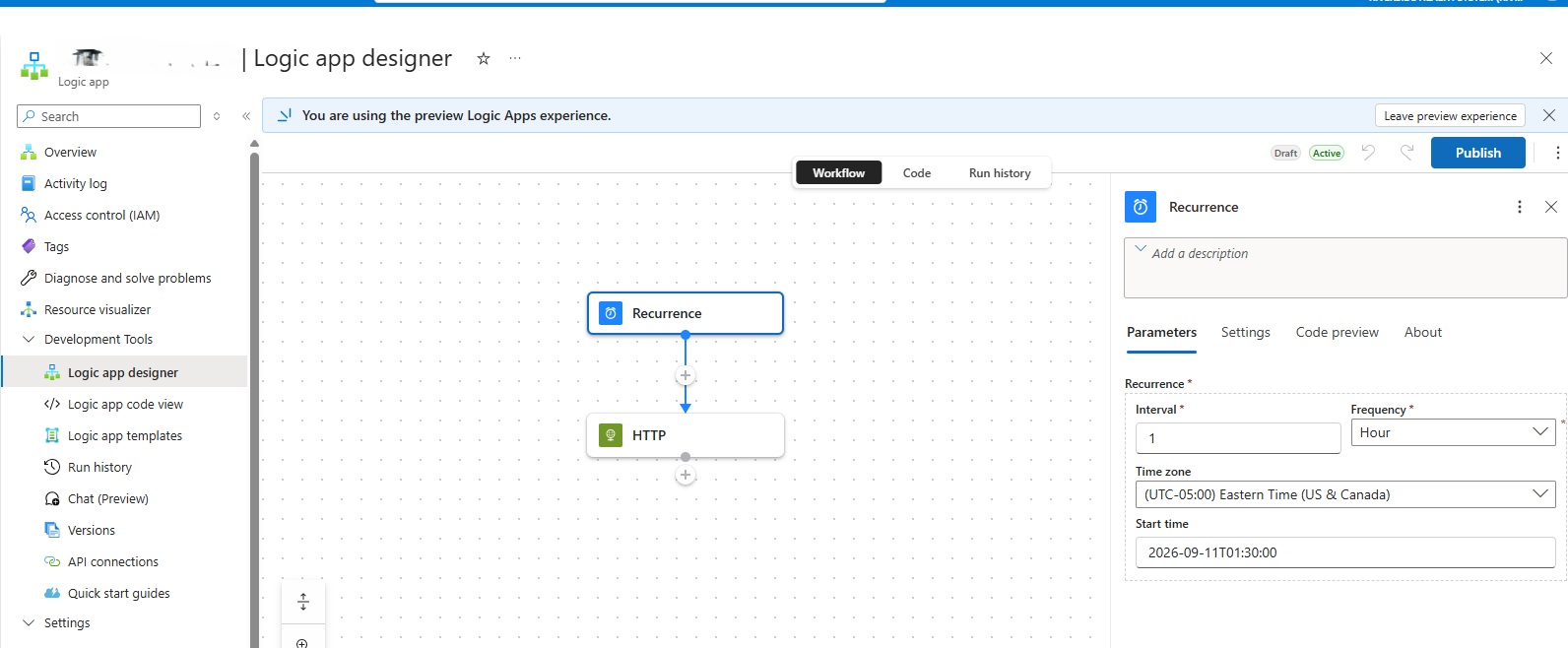
Example: Run an API every hour
Suppose we have a Next.js API route that imports product data into SitecoreAI.
| Setting | Value |
|---|---|
| Frequency | Hour |
| Interval | 1 |
| Purpose | Run the workflow every hour |
Once the workflow is enabled, Azure Logic Apps triggers the workflow every hour and executes the configured HTTP action.
Example: Run an API daily
If the content synchronization process only needs to run once a day, we can configure the trigger as follows:
| Setting | Value |
|---|---|
| Frequency | Day |
| Interval | 1 |
| Start time | A preferred time of day |
| Purpose | Run the workflow daily |
For production workflows, it is important to configure the appropriate time zone and start time. This helps ensure that the process runs at the expected local time.
Hourly schedules are useful for data that changes frequently, while daily schedules are suitable for tasks that do not require frequent updates.
3. Calling Next.js API Routes
In a SitecoreAI application built with Next.js, API routes can serve as the entry point for automated operations.
A Next.js API route can contain the business logic required to retrieve external data, validate it, and update Sitecore content using the appropriate APIs.
Instead of placing the entire content synchronization process inside Azure Logic Apps, we can keep the business logic in the Next.js application and use Logic Apps only to trigger it. This keeps scheduling separate from application logic.
Example Next.js API route
Consider an API route named /api/import-products that starts the product import process.
The following example illustrates a simplified Next.js App Router implementation:
import {NextResponse} from "next/server";

  export async function POST(request: Request) {
  const authorization = request.headers.get("authorization");
  if (
      authorization !== "Bearer ${ process.env.SCHEDULED_JOB_SECRET }"
  ) {
    return NextResponse.json(
      { success: false, error: "Unauthorized" },
      { status: 401 }
    );
  }

  try {
    // Execute the product import process here.
    // Retrieve external data and update Sitecore items.

    return NextResponse.json({
      success: true,
      message: "product import completed successfully",
    });
  } catch (error) {
    console.error("product import failed:", error);

    return NextResponse.json(
      {
        success: false,
        error: "product import failed",
      },
      { status: 500 }
    );
  }
}
This example demonstrates three important concepts:
The API accepts a POST request.
The request must include a valid authentication secret.
The API returns an appropriate HTTP status code depending on the outcome.
The actual import logic would replace the placeholder comment. In a real implementation, the API should also validate its inputs, log relevant execution details, and handle partial failures appropriately.
Configuring the HTTP action
In Azure Logic Apps, add an HTTP action after the Recurrence trigger and configure it to call the deployed API.
| Setting | Value |
|---|---|
| Method | POST |
| URI | https://your-domain.com/api/import-products |
| Header | Authorization: Bearer <secret> |
| Content-Type | application/json |
The URI should point to the publicly accessible HTTPS endpoint of the deployed Next.js application.
If the API expects a request body, configure the HTTP action to include the required JSON payload.
Important: Do not use an expired ngrok URL or a temporary local development endpoint for a production schedule. Use a stable, deployed endpoint that Azure Logic Apps can reach.
4. Securing the API with Authentication
When an API route triggers content updates, it should not be accessible to unauthorized callers. Otherwise, an external user could potentially trigger repeated imports or unwanted content changes.
Authentication ensures that only approved callers can execute the scheduled process.
Using a shared secret
For a simple implementation, we can use a shared secret between Azure Logic Apps and the Next.js API.
The secret is configured in the Next.js application's environment variables and supplied by Logic Apps through the HTTP request header.
For example, the application can use the environment variable SCHEDULED_JOB_SECRET to validate incoming requests.
The secret should be stored securely, preferably in Azure Key Vault or another approved secrets-management solution, and should never be committed to source control or exposed to the browser.
Consider the following security practices:
Use HTTPS for all API requests.
Store credentials in secure configuration or Azure Key Vault.
Rotate shared secrets periodically.
Restrict access to the endpoint where practical.
Avoid logging authentication headers or secret values.
Using stronger authentication
A shared secret may be sufficient for a simple internal automation workflow, depending on the application's security requirements. For production environments with stricter security requirements, Microsoft Entra ID authentication can provide a stronger approach.
With Microsoft Entra ID, the calling workflow can authenticate using an identity and obtain an access token for the API. The Next.js application must validate the token, including its issuer, audience, and required permissions.
The appropriate approach depends on the application's security architecture and the authentication mechanisms supported by the hosting environment.
Regardless of the method, authentication should be implemented before allowing the API to modify Sitecore content.
5. Monitoring Failures and Troubleshooting
Scheduling a workflow is only part of the automation process. It is equally important to monitor execution and identify failures.
For example, a scheduled product import might fail because an external API is unavailable, an authentication token has expired, a Sitecore request returns an error, or the Next.js API encounters an unexpected exception.
Without monitoring, these failures may go unnoticed, resulting in outdated or incomplete content.
Monitoring Logic App runs
Azure Logic Apps provides execution history for each workflow run. From the Azure portal, open the Logic App and review its run history to identify successful and failed executions.
For failed runs, inspect the details of the individual actions to determine where the failure occurred.
Common issues include:
- 401 Unauthorized: The API rejected the authentication credentials.
- 403 Forbidden: The caller does not have the required permissions.
- 404 Not Found: The configured API URL is incorrect or the route does not exist.
- 429 Too Many Requests: The API or an upstream service is limiting requests.
- 500 Internal Server Error: The Next.js API encountered an unexpected error.
- Timeout: The API took too long to respond.
The response status code and error details can help narrow down the root cause.
Logging failures in Next.js
The API route should log meaningful information about the import process, including when the process starts, when it completes, how many records were processed, and whether any records failed.
console.log("product import started");

    try {
        // Execute the import process.

        console.log("product import completed");
    } catch (error) {
        console.error("product import failed:", error);

        throw error;
    }
In production, application logs should be collected and monitored using the hosting platform's built-in logging capabilities, such as Vercel Runtime Logs or Netlify Function Logs, or through a dedicated monitoring service such as Azure Application Insights, when configured.
Avoid logging sensitive information, including access tokens, API secrets, or unnecessary personal data.
Configuring alerts and retries
Azure Logic Apps supports retry policies for certain actions. Retries can help when a temporary network issue or service interruption causes a request to fail.
However, retries should be configured carefully. If the import process modifies content, repeating the same request must not create duplicate items or unintended changes.
A good approach is to make the import operation idempotent, meaning that executing the same operation multiple times produces the intended final state without duplicating content.
For example, a product import should identify existing Sitecore items using a stable identifier, such as a product ID, before creating new items.
You can also configure Azure Monitor alerts to notify the support team when workflow runs fail or when a workflow has not executed as expected.
Combining workflow history, application logs, retries, and alerts makes it easier to maintain reliable automated content updates.
Conclusion
Azure Logic Apps provides a simple and effective way to automate recurring content operations in SitecoreAI applications built with Next.js.
By using the Recurrence trigger, we can schedule hourly or daily API calls without requiring manual intervention. Next.js API routes can handle the application-specific logic, while authentication protects the endpoint from unauthorized access.
Monitoring and error handling are equally important. Reviewing workflow execution history, collecting application logs, configuring retries, and setting up alerts can help identify problems before they affect website content.
For teams working with SitecoreAI, this approach provides a practical foundation for automating content imports, external data synchronization, and other recurring maintenance tasks while keeping scheduling separate from application logic.